Quick Reference: Required Details
For Microsoft Teams integration, you'll need these four essential details from Azure Portal:
- Client ID
- Client Secret
- Tenant ID
- Redirect URI - Set to:
http://localhost/ugrowthmentor_new/admin/teams/teams_callback
You'll get the Microsoft Teams Integration settings in Admin > Settings > Website Settings > Microsoft Teams.
Microsoft Teams Integration
You've to integrate Microsoft Graph API to sync with Microsoft Teams. Please follow the steps below to integrate:
-
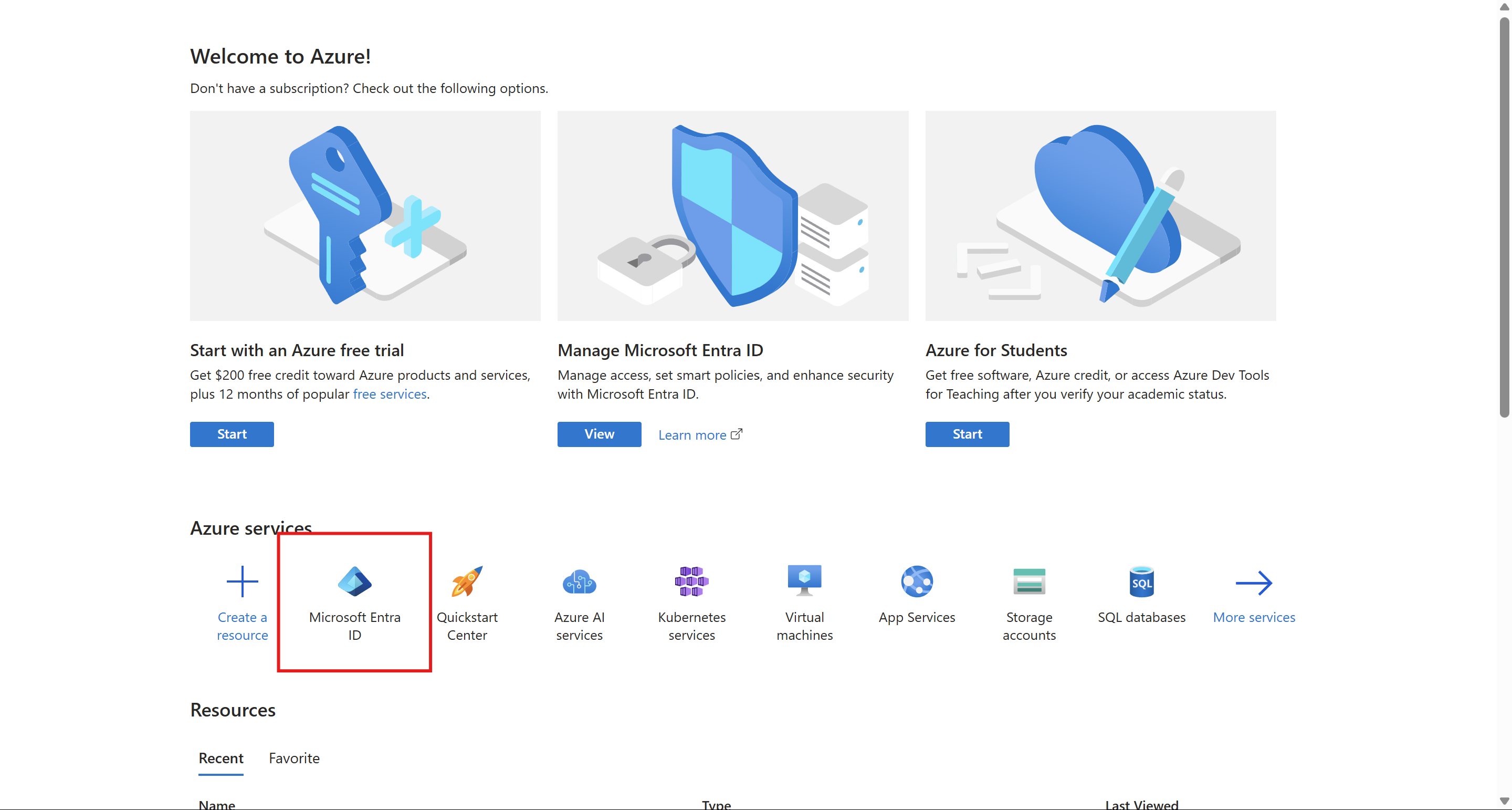
Go to the Microsoft Azure Portal and click on Azure Active Directory. If it's not available, check on More services.
-
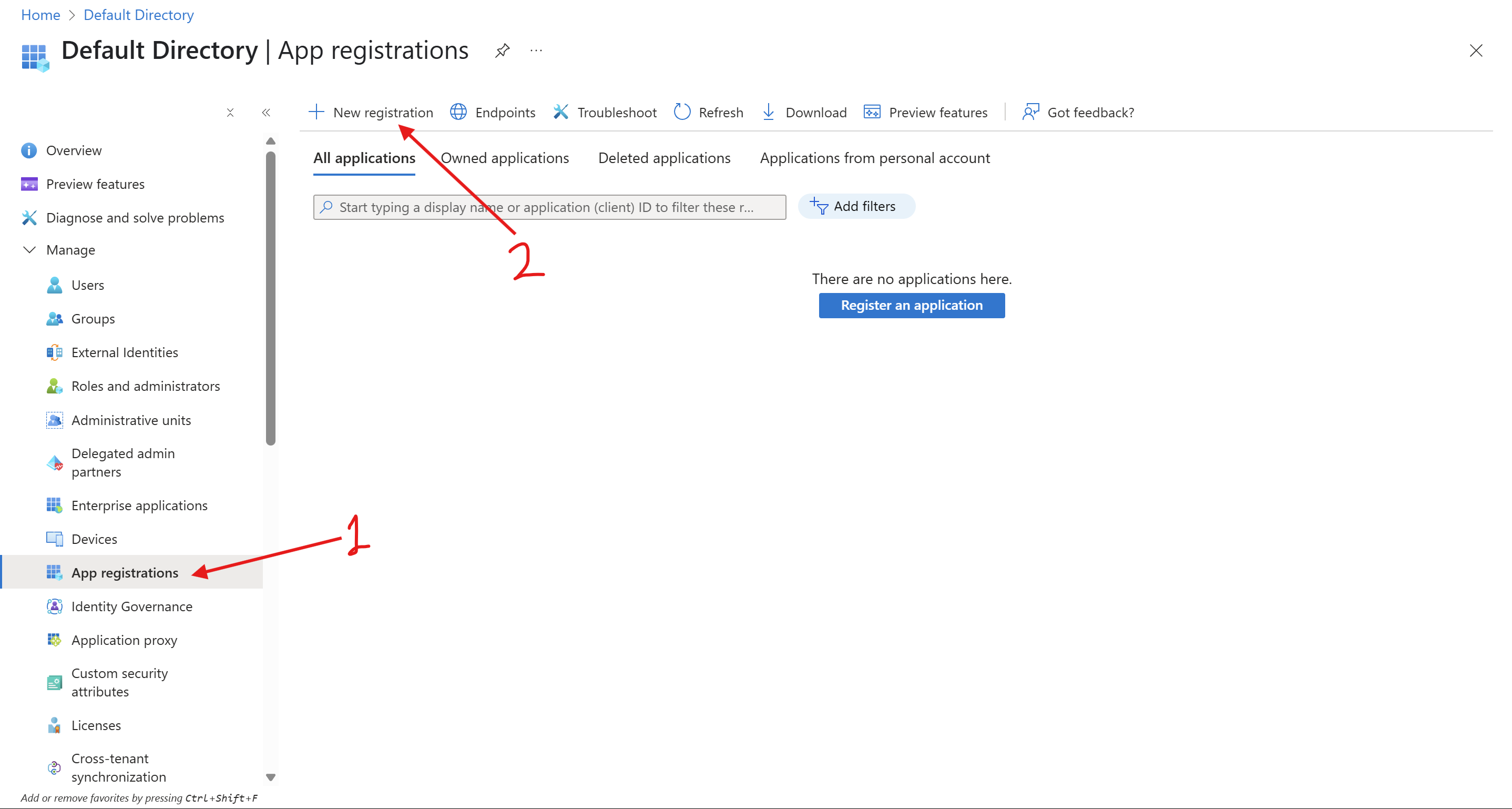
Click on App registrations from left menu the click New registration.
-
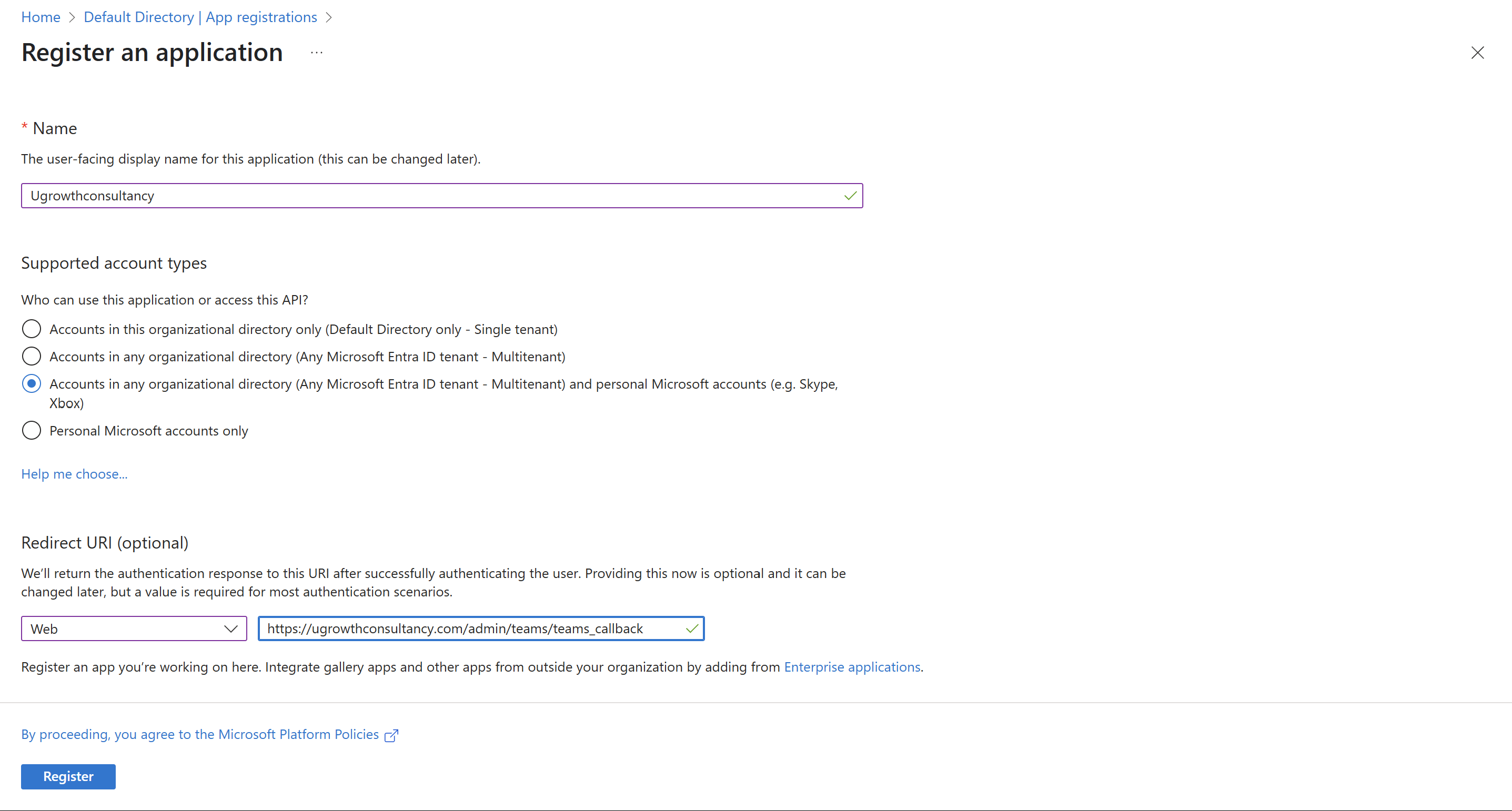
After that, you'll get a form like this. Fill up as below. In Redirect URI, you should add this url http://localhost/ugrowthmentor_new/admin/teams/teams_callback. You'll find this in your integration setting. Finally click on Register button.
-
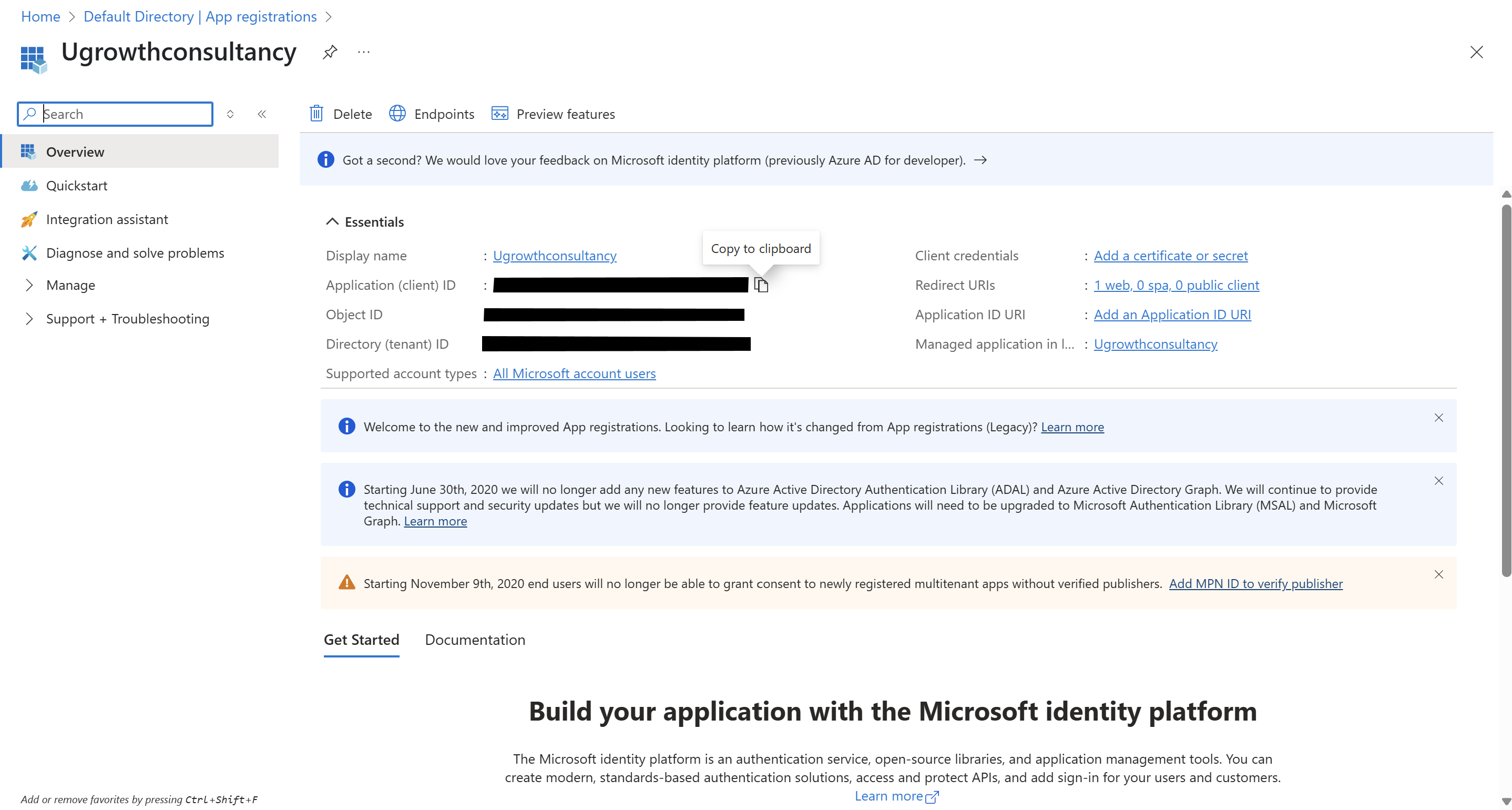
Now, you'll get the Overview page. Copy Client ID from there and add to integration setting.
-
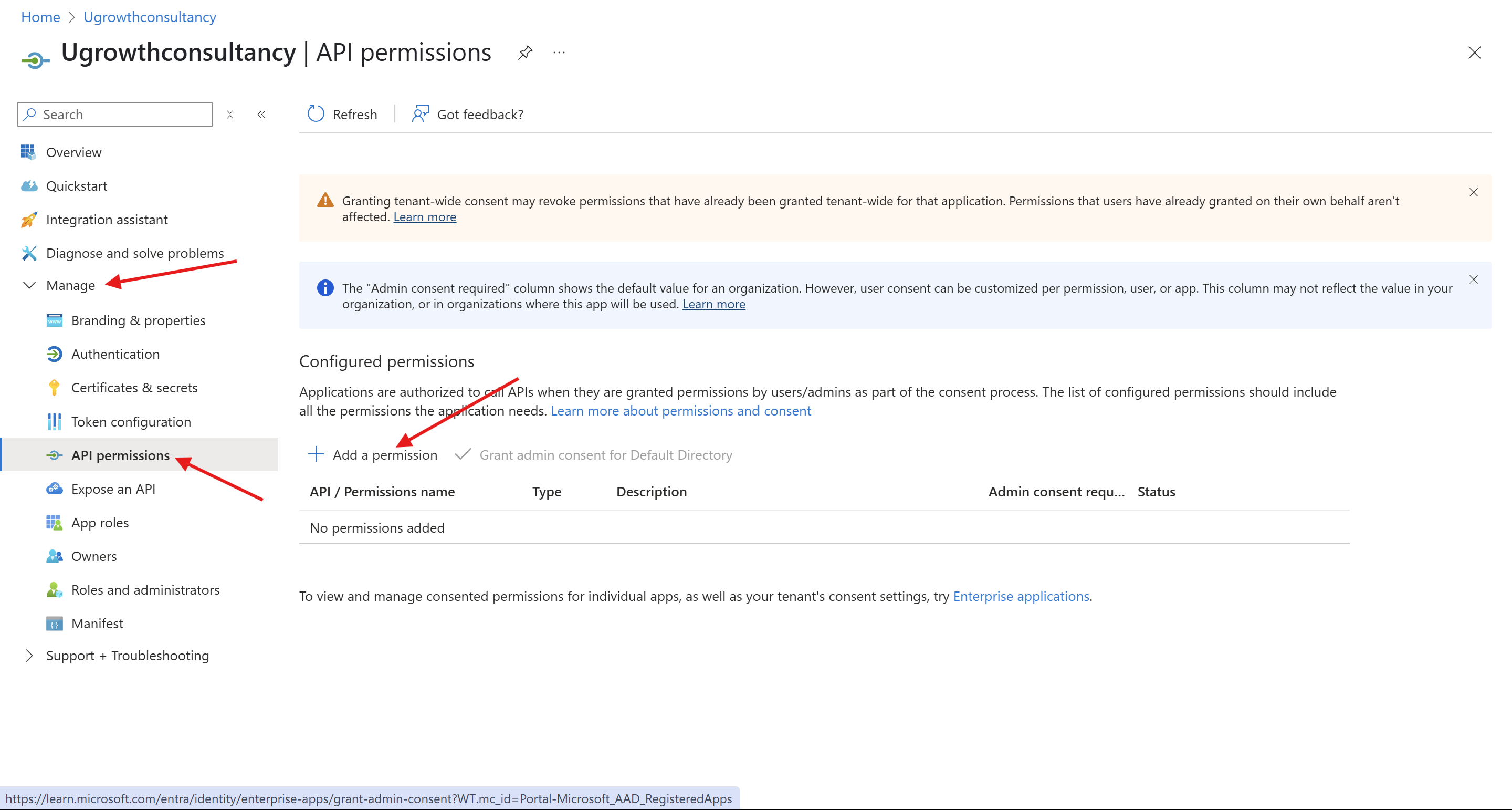
Click on API permissions from left menu. Then click on Add a permission.
-
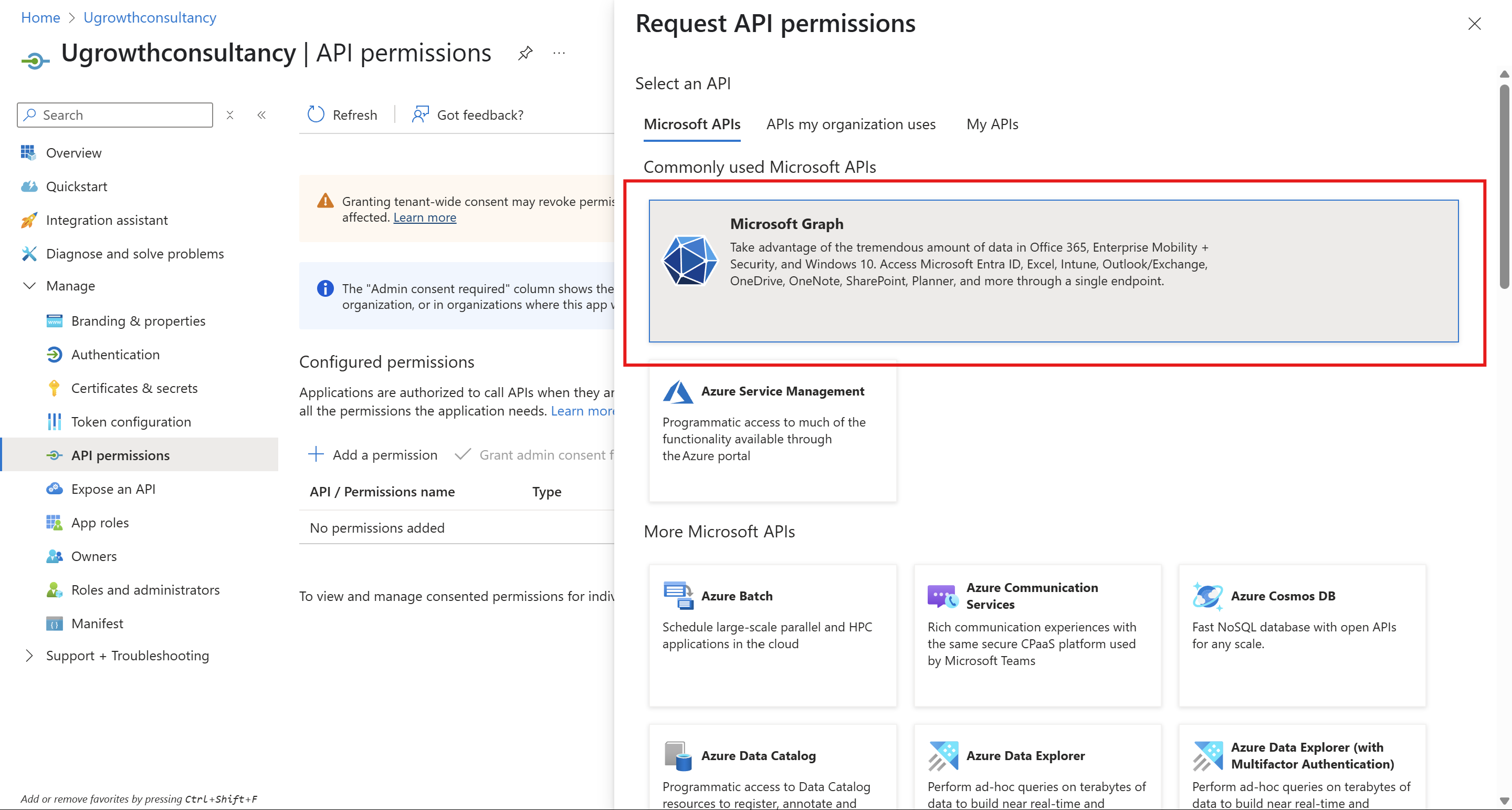
Click on Microsoft Graph.
-
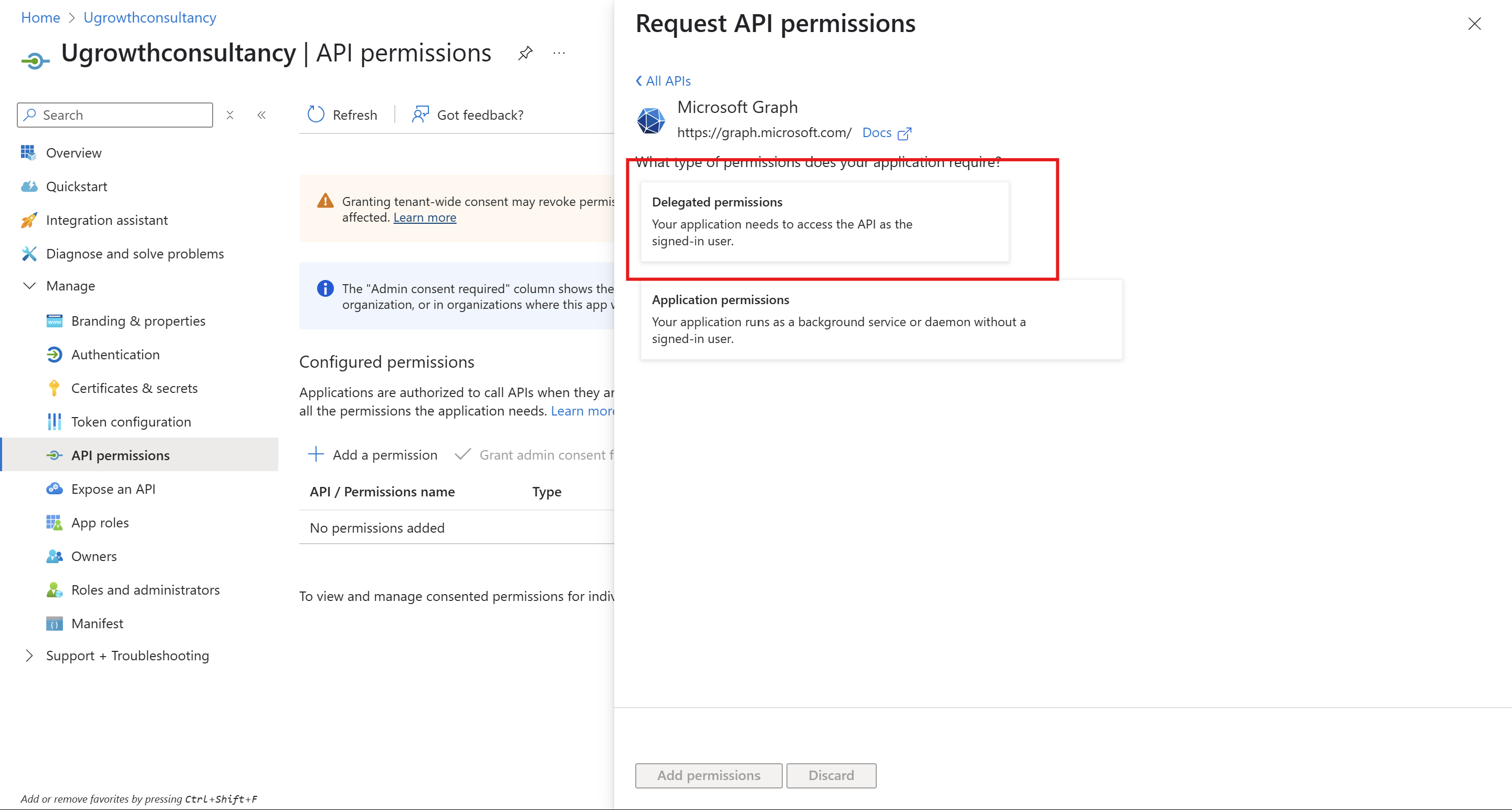
Click on Delegeted permissions.
-
Search offline_access and click on the checkbox.
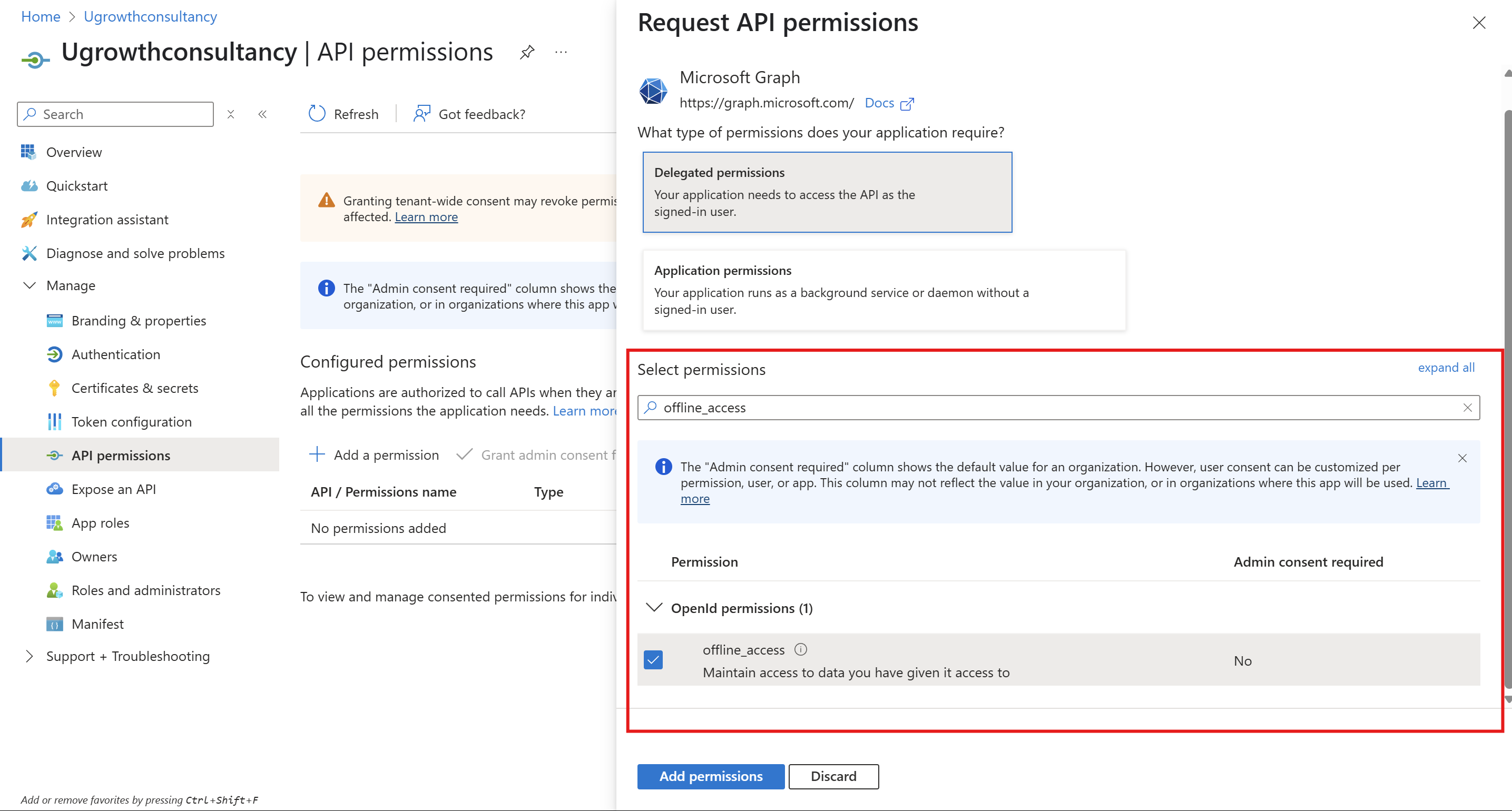
Search Calendars.ReadWrite and click on the checkbox.
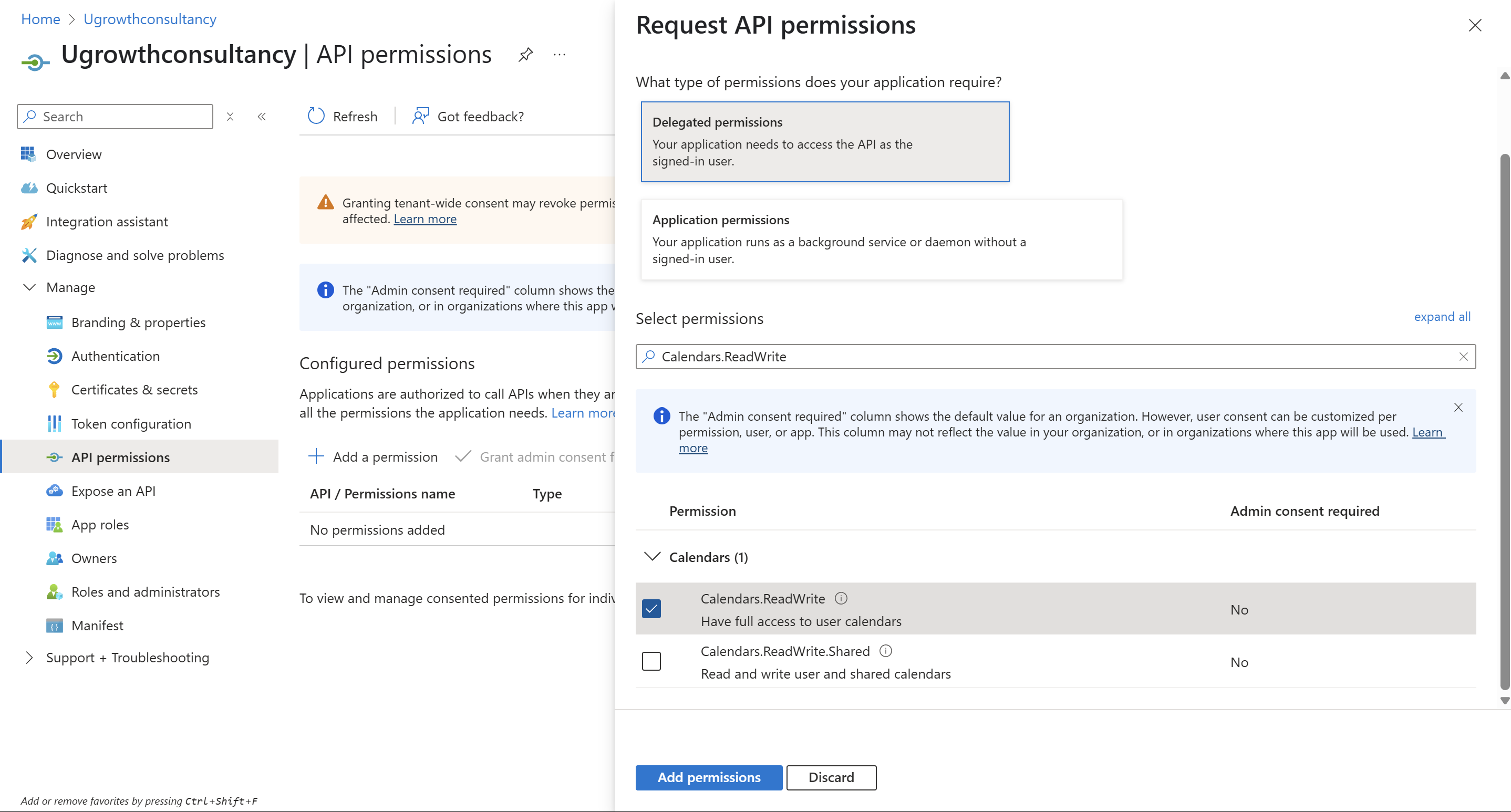
Finally, click on Add permissions button. -
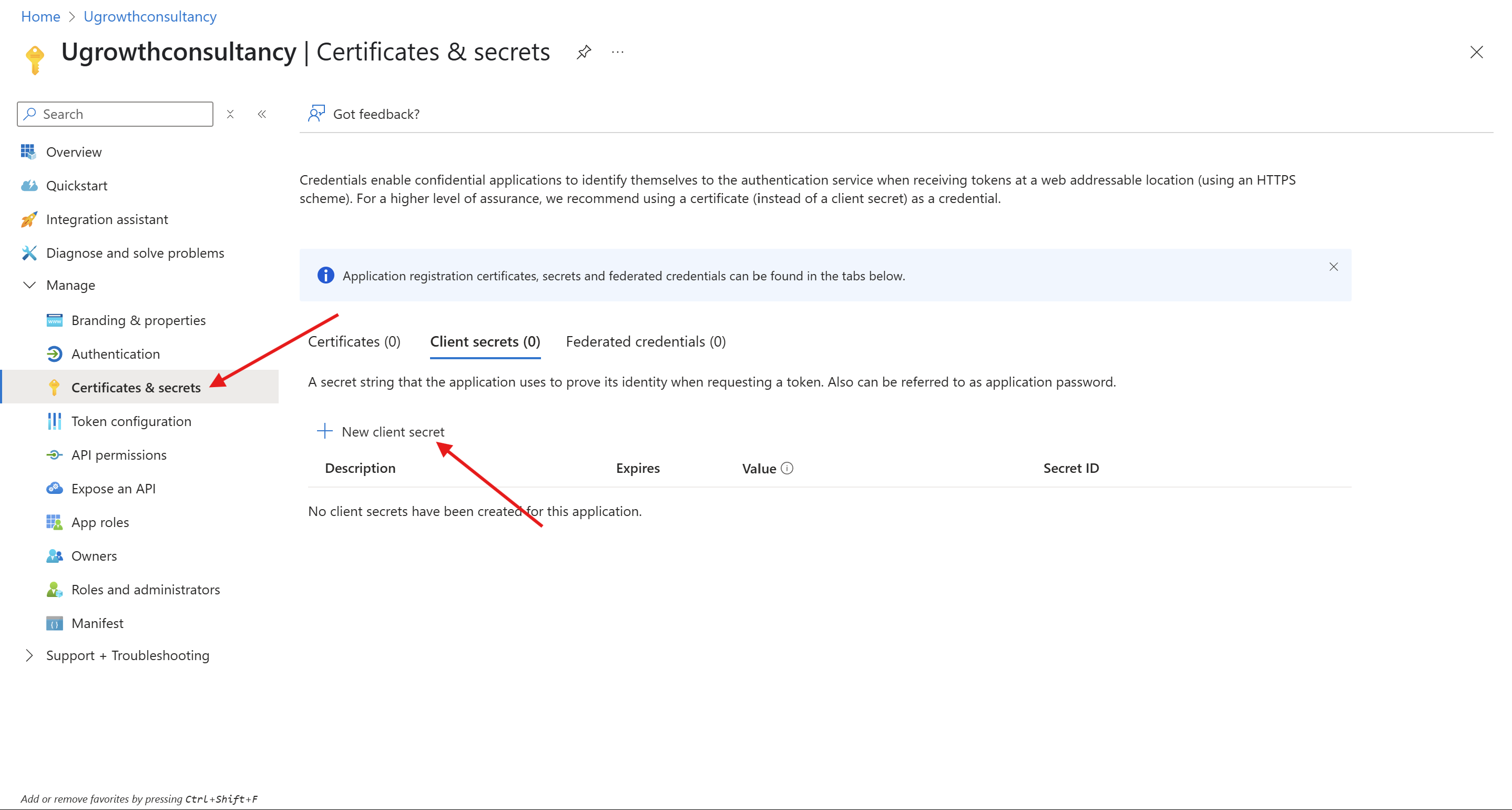
Click on Certificates & secrets from left menu. Then click on New client secret.
-
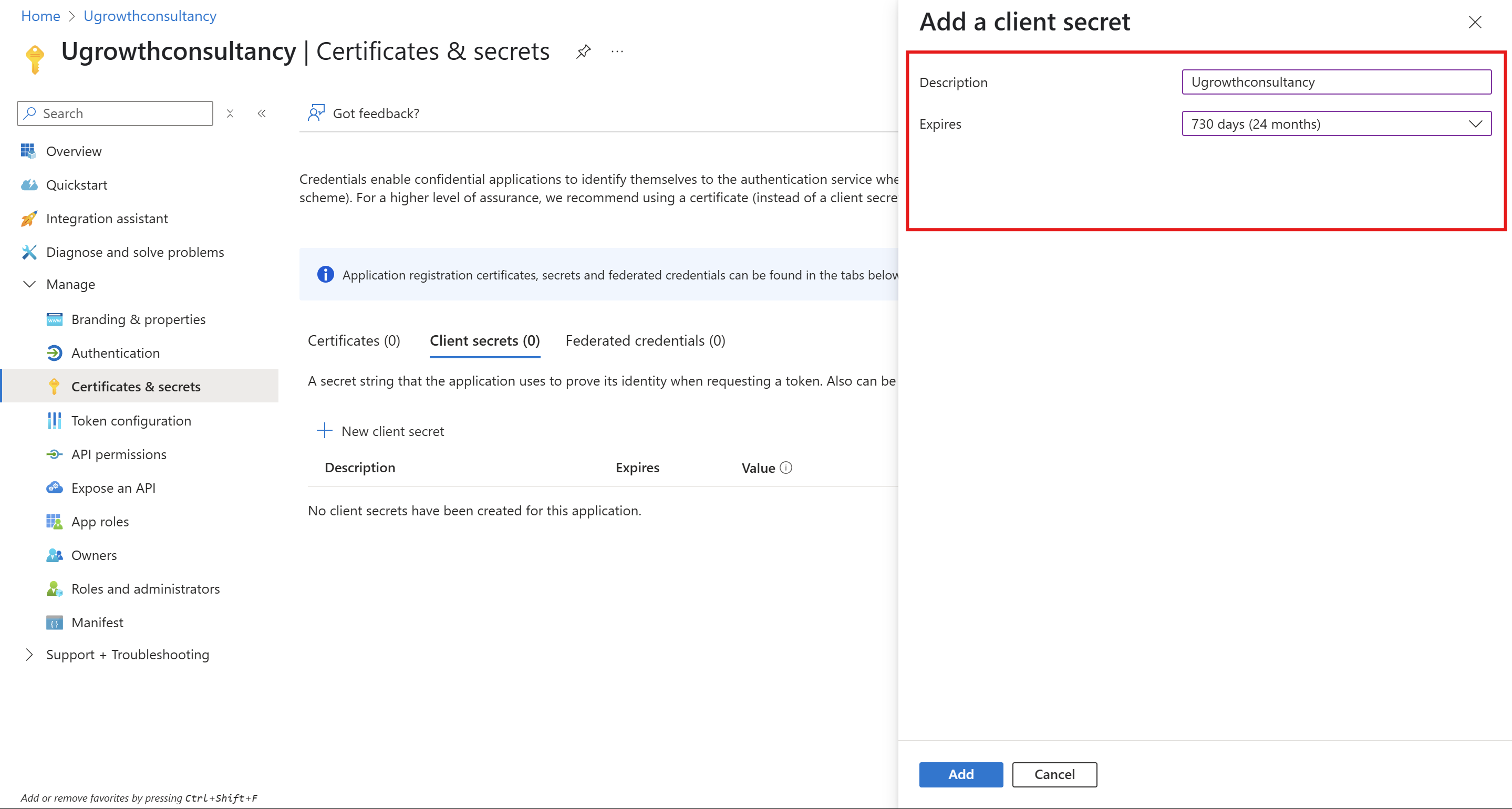
Fill up the form like below and click on Add button.
-
After that, you'll get the Client secret.
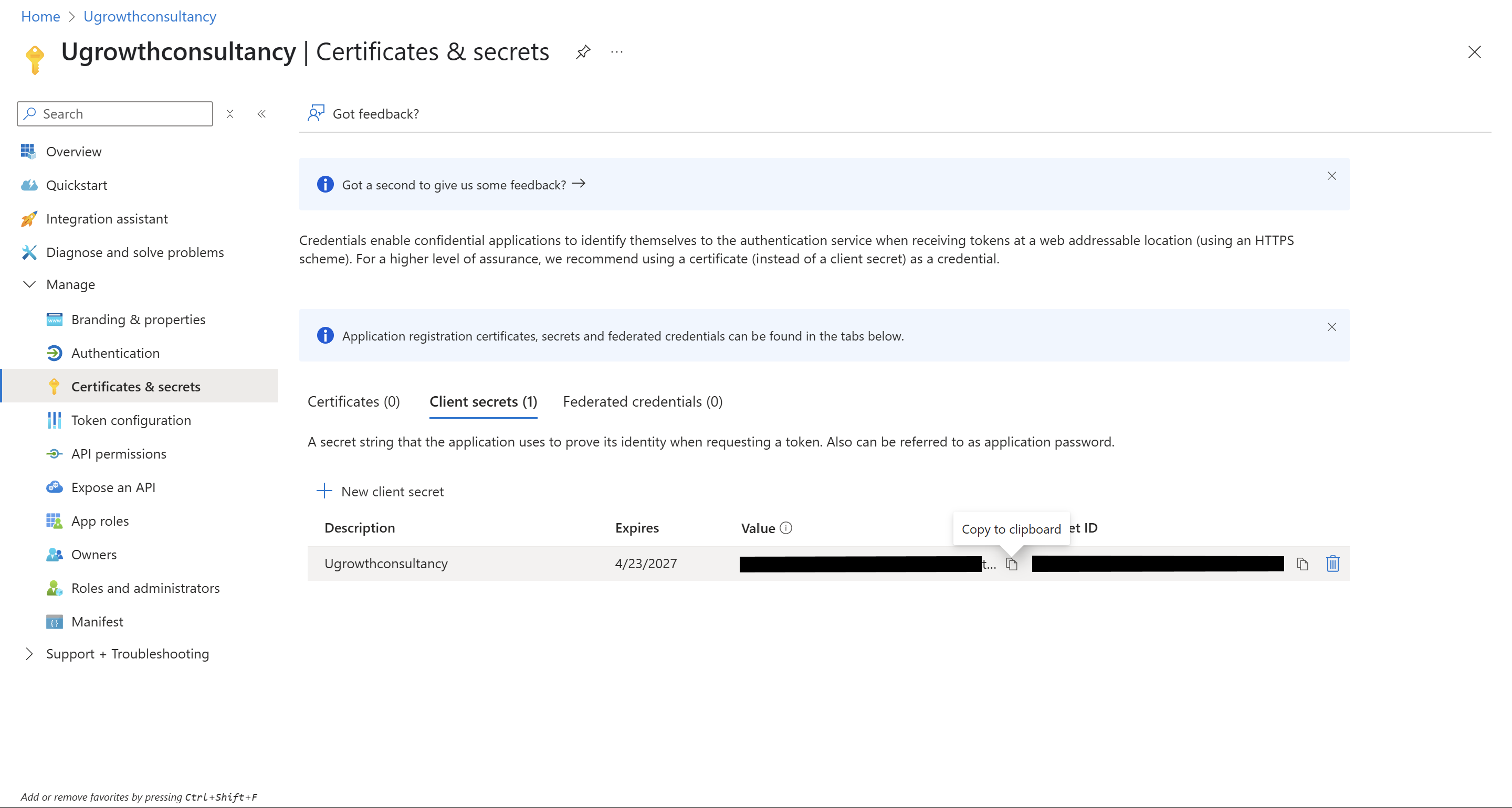
- Add this Client secret also to the integration settings and click on Save.
-
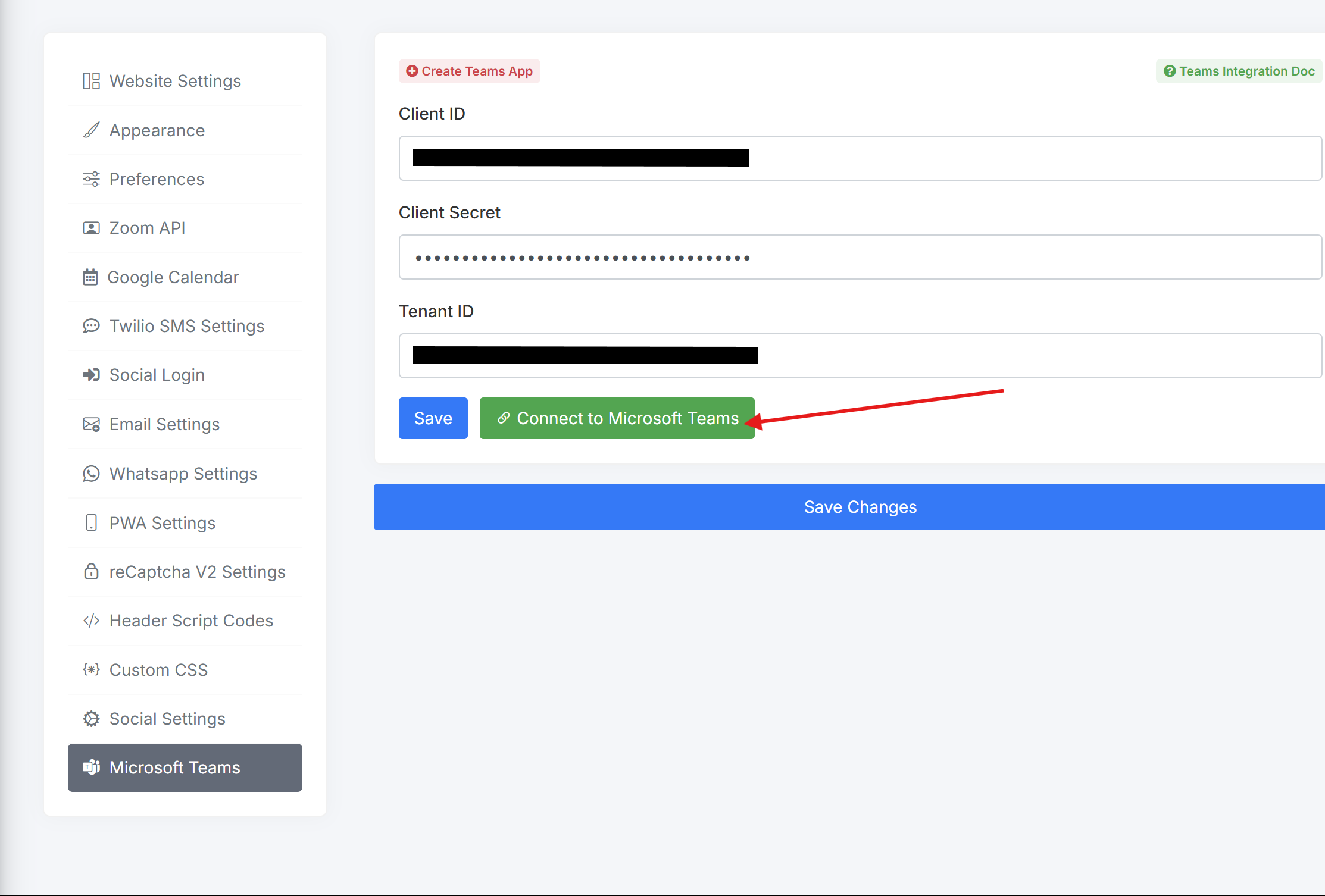
Now, you'll have to click on Connect to Microsoft Teams button to authorize the integration.
-
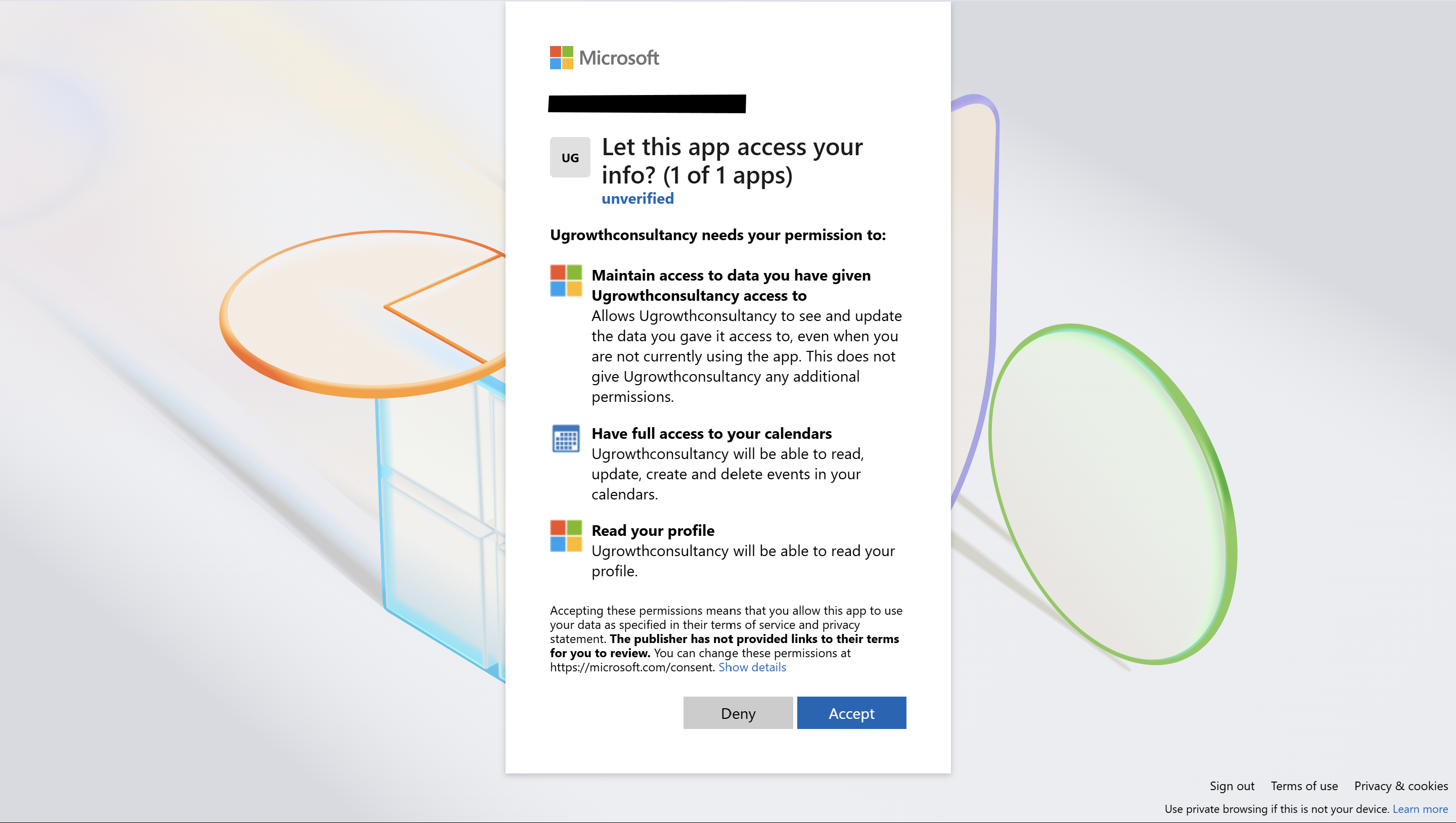
On authorization, you'll get a page like this. Click on Accept button.
-
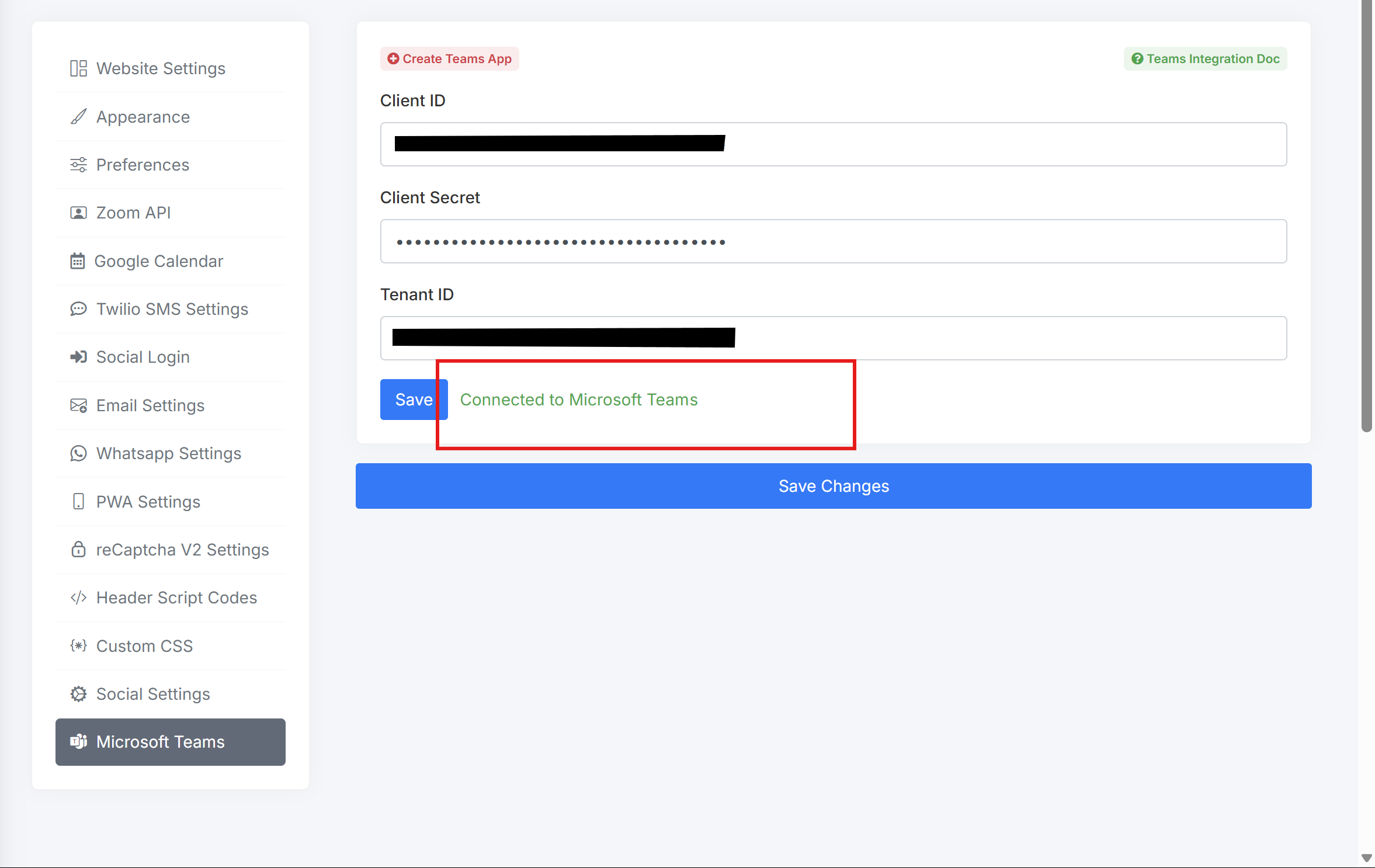
On retrieving from API access, please make sure that, status of Microsoft Teams Integration is showing Connected to Microsoft Teams.
That's all! You've successfully integrated Microsoft Teams.